---
title: Buy vs Sold widget
description: buy vs sold
---
[Skip to content](https://support.beerboard.com/knowledge/buy-vs-sold-widget#main-content)
English
Show submenu for translations

Open main navigation
Close main navigation
- English
Show submenu for translations
- [Contact us](https://share.hsforms.com/1b6jKgzmvTI-oms75xoTasw3vlv9)
[Contact us](https://share.hsforms.com/1b6jKgzmvTI-oms75xoTasw3vlv9)
How can we help you?
- There are no suggestions because the search field is empty.
1. [BeerBoard Knowledge Base](https://support.beerboard.com/knowledge?hsLang=en)
2. [Bars and Restaurants](https://support.beerboard.com/knowledge/bars-and-restaurants?hsLang=en)
3. [New SmartBar](https://support.beerboard.com/knowledge/bars-and-restaurants?hsLang=en#new-smartbar)
# Buy vs Sold widget
## Overview of Buy vs Sold widget on the new SmartBar home page
### Buy vs Sold
This new Buy vs Sold widget compares the amount of product purchased and the amount sold, often used in inventory and sales analysis. Here are some key points related to "Buy vs Sold":
1. **Index Calculations**: The "Buy vs Sold Index" measures revenue earned per dollar of product purchased. It includes target lines for ideal revenue per ounce and variance displays showing percentage and dollar amount differences from the ideal.
2. **Revenue and Cost Calculations**: Revenue is calculated as the sum of daily summary data, and purchase cost is similarly aggregated. The actual index is derived from revenue divided by purchase cost, and various metrics like revenue per ounce and cost per ounce are used to assess performance.
3. **Technical Specifications**: The system includes drill-down capabilities for detailed analysis at different levels (e.g., regional, district, store) and ensures data accuracy by verifying calculations against source data.
These elements are part of a broader system designed to optimize inventory management and sales performance by providing detailed insights into the relationship between products bought and sold.
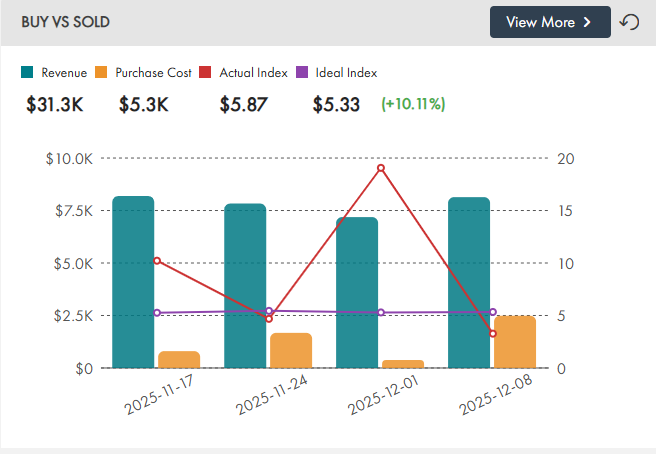
This graph compares financial and performance metrics over time, including:
- **Revenue** and **Purchase Cost** (bar graph)
- **Actual Index** and **Ideal Index** (line graph)
- Index is an indicator for the amount made per dollar.
Use the **Product Type** dropdown in the sidebar to filter for Draft, Package (Bottles & Cans), Liquor, or Wine.
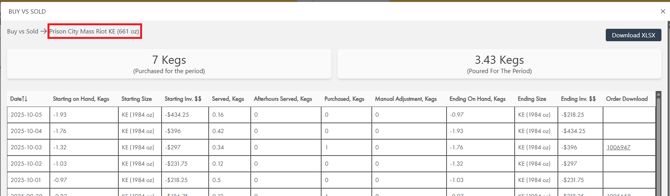
- Perpetual Inventory added to Buy vs Sold
- Click "View More", then click the product to view its Perpetual Inventory page
- This is a view only screen. No adjustments can be made to inventory from this page.
- Displays the date selected
- Export available
- Click $$ or Units in View More to see your data in dollars or units
- Product type filter will influence the report so if you select "Package" then only package will appear, for example

drills down to:
- [Bars and Restaurants](https://support.beerboard.com/knowledge/bars-and-restaurants?hsLang=en#main-content)
- [SmartBar](https://support.beerboard.com/knowledge/bars-and-restaurants?hsLang=en#smartbar)
- [Product Management](https://support.beerboard.com/knowledge/bars-and-restaurants?hsLang=en#product-management)
- [Yield Management](https://support.beerboard.com/knowledge/bars-and-restaurants?hsLang=en#yield-management)
- [BeerBoard TV](https://support.beerboard.com/knowledge/bars-and-restaurants?hsLang=en#beerboard-tv)
- [SmartBar Mobile App](https://support.beerboard.com/knowledge/bars-and-restaurants?hsLang=en#smartbar-mobile-app)
- [BeerBoard P@Y](https://support.beerboard.com/knowledge/bars-and-restaurants?hsLang=en#beerboard-py)
- [SmartMenus](https://support.beerboard.com/knowledge/bars-and-restaurants?hsLang=en#smartmenus)
- [SmartOrders](https://support.beerboard.com/knowledge/bars-and-restaurants?hsLang=en#smartorders)
- [Integrations Setup](https://support.beerboard.com/knowledge/bars-and-restaurants?hsLang=en#integrations-setup)
- [New SmartBar](https://support.beerboard.com/knowledge/bars-and-restaurants?hsLang=en#new-smartbar)
- [BevBox](https://support.beerboard.com/knowledge/bars-and-restaurants?hsLang=en#bevbox)
- [Beer Tour](https://support.beerboard.com/knowledge/bars-and-restaurants?hsLang=en#beer-tour)
- [General FAQs](https://support.beerboard.com/knowledge/general-faqs?hsLang=en#main-content)
- [SmartBar](https://support.beerboard.com/knowledge/general-faqs?hsLang=en#smartbar)
- [SmartOrders](https://support.beerboard.com/knowledge/general-faqs?hsLang=en#smartorders)
- [Claim Your Brand](https://support.beerboard.com/knowledge/claim-your-brand?hsLang=en#main-content)
- [Distributors, Wholesalers, and Suppliers](https://support.beerboard.com/knowledge/claim-your-brand?hsLang=en#distributors-wholesalers-and-suppliers)
- [Claim Your Brand FAQs](https://support.beerboard.com/knowledge/claim-your-brand?hsLang=en#claim-your-brand-faqs)
- [Suppliers, Distributors, and Wholesalers](https://support.beerboard.com/knowledge/suppliers-distributors-and-wholesalers?hsLang=en#main-content)
- [SmartOrders](https://support.beerboard.com/knowledge/suppliers-distributors-and-wholesalers?hsLang=en#smartorders)
- [Insights](https://support.beerboard.com/knowledge/suppliers-distributors-and-wholesalers?hsLang=en#insights)
- [General FAQ](https://support.beerboard.com/knowledge/suppliers-distributors-and-wholesalers?hsLang=en#general-faq)
- [BeerBoard P@Y](https://support.beerboard.com/knowledge/suppliers-distributors-and-wholesalers?hsLang=en#beerboard-py)
[](https://www.beerboard.com/)
225 W Jefferson St, Syracuse, NY 13202
Copyright © 2025, BeerBoard